

Review guide · Saved swings
How to Compare Golf Swing Videos Side by Side
Save a baseline and a later attempt from the same camera position. Open both in SwingLoop to review them side by side, choose the sections you want to compare, and mark a paused frame.
Choose two videos that can be compared fairly
Start with the same camera view, lens height, and alignment. A face-on swing and a down-the-line swing answer different questions. Changing the camera position between clips can make an unchanged movement look different.
Match the club and framing where practical. Save one swing before trying a change, then save another from the same position afterward. The camera-placement guide explains how to keep that view consistent.
SwingLoop provides visual comparison tools. It does not score your technique or determine whether a movement is correct. Choose a specific observation, preferably one you are already working on with your coach.
Open two saved swings
- Save the clips you want to keep during practice, before ending the temporary session.
- Open the Saved tab and select your first swing.
- Choose Compare below the video.
- Select another saved swing from the list.
- Use the playback controls to review both videos side by side.
If a clip has not been saved yet, return to the active replay session and save it first. You can also use Import from camera roll to add a video from Photos to your saved library.
Allow SwingLoop access to the videos you want to review when iOS asks. If a saved clip is unavailable, check that it still exists in Photos and that SwingLoop has permission to read it.
Choose the sections you want to compare
Two videos may include different amounts of setup time. In comparison mode, use Select section for each video and drag the ends of its timeline to choose a start and end. Use Use full video to reset a selection.
For example, choose sections that begin at address and end at the finish. Check the visible positions as you move through playback. A matching playback position alone does not prove the golfers are at the same point in the swing.
These selections control the comparison view. They do not require cutting or replacing the original Photos videos.
Draw on a paused frame
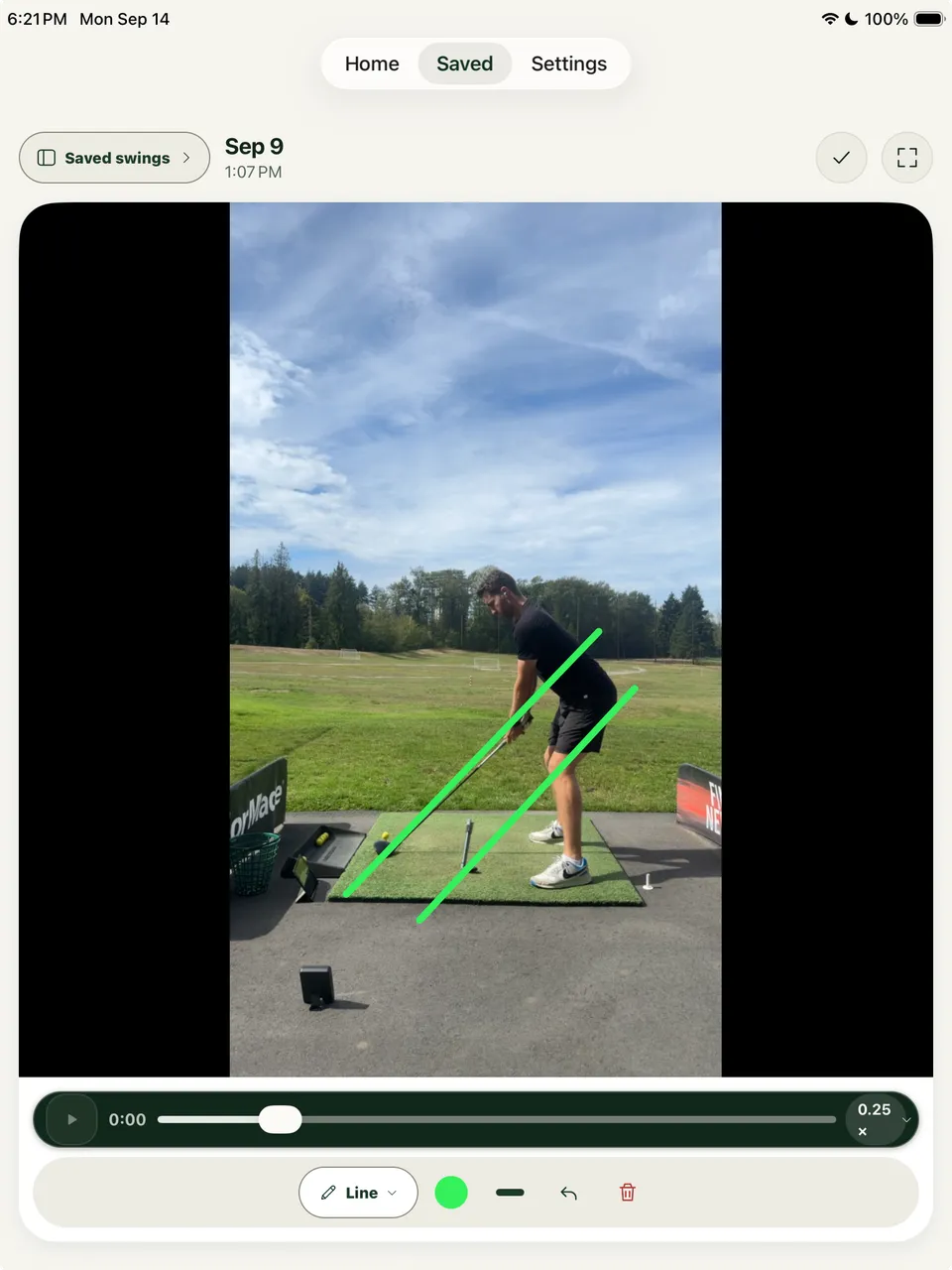
Choose Draw to pause the video and open the markup tools. You can draw on either paused video while comparing.
- Line: add a reference such as the shaft’s position at address.
- Angle: inspect an angle relative to the horizontal on screen.
- Circle: highlight a position; drag from the center to draw and use its edge to resize.
- Freehand: mark an area you want to discuss with your coach.
Choose a color and line weight that are easy to see against the video. Use Undo to remove the latest mark or Clear all to remove the drawings. Choose Done to leave drawing mode.
The example screenshot shows reference lines on one saved swing. The same drawing tools are available when two saved videos are open for comparison.
Keep the camera angle in mind when reading a mark. An on-screen angle is a measurement of the video image, not a complete measurement of your body or club in three dimensions.
Organize a useful comparison
Add labels you will recognize later, such as the club, drill, or swing thought. Keep a baseline and a small number of later attempts rather than saving every shot without context.
When sharing a saved clip with your coach, include the camera view and what you were trying to change. A short, specific question is easier to answer than a folder of unlabeled swings.
Build the comparison into practice
Record a baseline, make one adjustment, and record again from the same angle. Review those two clips before changing something else.
You can collect those swings with one iPhone or iPad, with a separate replay screen, or while practicing into a home net. Save the clips before ending the session so they remain available for comparison.