

Setup guide · Apple Watch
Save Golf Swing Videos With Apple Watch
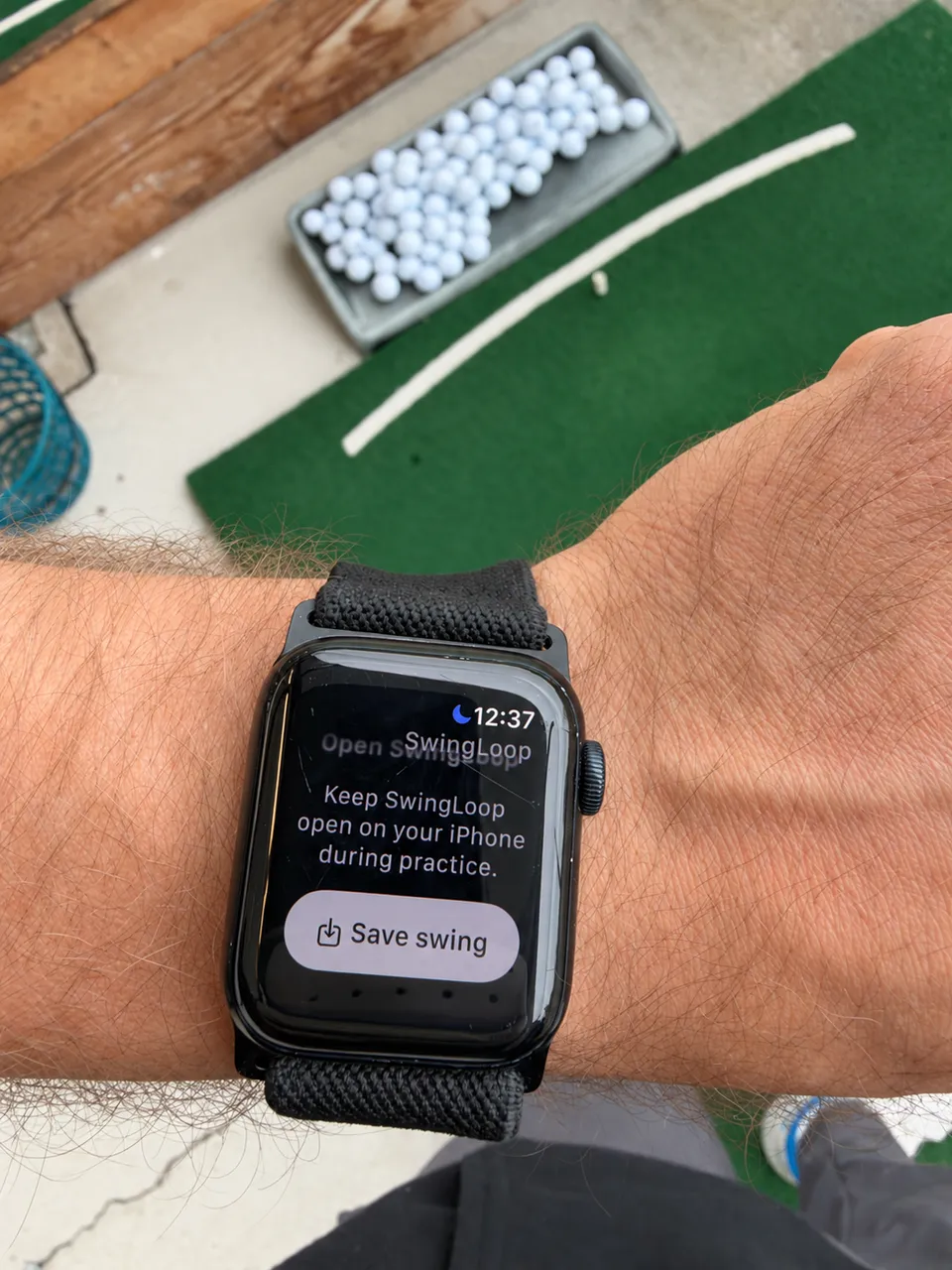
After recording a swing, tap Save swing on your Apple Watch to keep that clip in Photos and Saved swings on the paired iPhone. Keep SwingLoop open in a practice session on that phone.
What the watch does
The SwingLoop Apple Watch companion saves the latest completed swing from its paired iPhone. It shows the recording time so you can check which swing you are about to keep.
The iPhone handles recording and video storage. The watch does not film, display swing video, or connect directly to an iPad. Its Save swing button lets you keep a clip without reaching for the iPhone after the shot.
Set up the companion
- Update SwingLoop on your iPhone.
- In the iPhone’s Watch app, check that SwingLoop is installed on the paired Apple Watch. Install it from the available apps list if needed.
- Open SwingLoop on the watch.
- Keep SwingLoop open in a practice session on the paired iPhone.
- Record a test swing and wait for recording to finish.
- Check the recording time on the watch, then tap Save swing.
The companion requires watchOS 10 or later. SwingLoop on the iPhone requires iOS 16.4 or later; your particular iPhone and watch pairing may require newer system versions.
On the first save, iOS may ask for Photos permission on the iPhone. Complete that prompt there. Wait for the watch’s saved confirmation, then check Photos or the iPhone’s Saved swings library.
Which practice setups work?
| Paired iPhone’s role | What the watch saves |
|---|---|
| Single device: filming and replaying on its own | The latest completed recording on that iPhone. |
| Camera: filming for a separate replay device | The latest completed recording from that iPhone. |
| Replay: receiving clips from another camera device | The latest swing received by that iPhone. |
In every case, the saved video belongs to the paired iPhone’s Photos and Saved swings library. Saving from the watch does not also add it to a separate iPad’s library.
For a one-phone setup, follow the single-device replay guide. For a camera and separate monitor, follow the two-device setup guide.
Check which swing you are saving
The watch targets the latest completed swing. Choosing an older replay on the phone does not change that target. To keep an older clip, use the save control for that clip on the iPhone.
If another swing finishes before you save, check the recording time again. An outdated watch request is rejected rather than silently saving a different recording. Refresh the watch state and tap Save swing again for the clip you intend to keep.
Save useful swings before ending the temporary practice session.
If Save swing is unavailable
| What you see | What to check |
|---|---|
| Open SwingLoop | Keep a practice session open in the foreground on the paired iPhone. |
| No completed swing is available | Finish a recording, or wait for the iPhone to receive its replay clip. |
| A connection message | Bring the watch near its paired iPhone. Use Reconnect if it is shown. |
| A Photos permission message | Complete the permission prompt on the iPhone, or review SwingLoop’s Photos access in iOS Settings. |
| The latest swing changed | Check the new recording time and save the intended clip again. |
If saving still fails, reopen SwingLoop on both the iPhone and watch, start a practice session, and try one test swing. For help, contact SwingLoop Support with the device models, system versions, and the message shown on the watch.
Review the saved clip later
Open Saved on the paired iPhone to find the clip. Add a label for the club or practice goal, then use the comparison and drawing tools to review it beside another saved swing.